
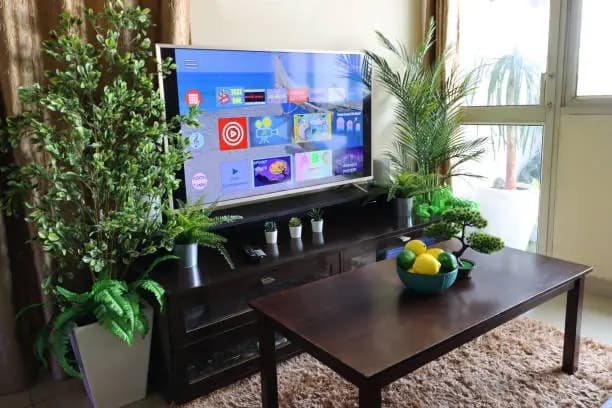
Keeping your Hisense Smart TV updated helps improve performance, fix software bugs, and add new features. Regular updates can also improve app compatibility and enhance security on the device. Learning how to update Hisense Smart TV software helps keep your television running smoothly and ensures you enjoy the latest improvements. Most Hisense TVs allow updates through the internet, while some models also support USB updates.
-
Table of Contents
ToggleConnect the TV to the Internet
Before updating, make sure your Hisense Smart TV is connected to a stable internet connection.
WiFi or a wired connection can be used for the update process.
- Open the network settings
- Connect to WiFi or Ethernet
- Test the internet connection
-
Open the TV Settings
Using the remote control, go to the settings menu on your Hisense TV.
Most update options are found under support or system settings.
- Press the Settings button
- Navigate to Support or System
- Open the update section
-
Check for Software Updates
Select the option to check for firmware or system updates.
The TV will search for the latest available software version.
- Choose “System Update”
- Select “Check Firmware Update”
- Wait for the search to complete
-
Download and Install the Update
If an update is available, follow the on-screen instructions to download and install it.
Do not switch off the TV during the update process.
- Confirm the update installation
- Allow the TV to restart if needed
- Keep the power connected
-
Enable Automatic Updates
Automatic updates help keep your TV updated without manual checks.
This can make future maintenance easier.
- Turn on Auto Firmware Upgrade
- Save the settings
- Check periodically for successful updates



Comments
No comments yet. Be the first to share your thoughts.