
![How to Unlock iPhone Without Passcode [Top 4 Ways]](/_next/image?url=https%3A%2F%2Fstorage.googleapis.com%2Ferrands-mwendaa.firebasestorage.app%2Fimages%2Fbf49fc584bf26883986e3e241d08f48983f91d76.jpg&w=3840&q=75)
As users, losing the phone passcode or getting locked out can be a very disturbing experience. Most individuals want to find methods of unlocking their devices without losing any data or resetting them. Not all the options can be safe and reliable, but there are still ways that can work. So, this article will explain different simple solutions, along with a dedicated iPhone unlocker to unlock your smartphone without a passcode.
It is not possible to unlock an iPhone without resetting or exploiting old Siri tricks. Apple protects devices with strong security that prevents bypassing the passcode without data loss. On the other hand, Siri loopholes that once allowed limited access have already been fixed in updated iOS versions. To unlock the iOS screen safely, you must rely on official techniques or trusted external software.
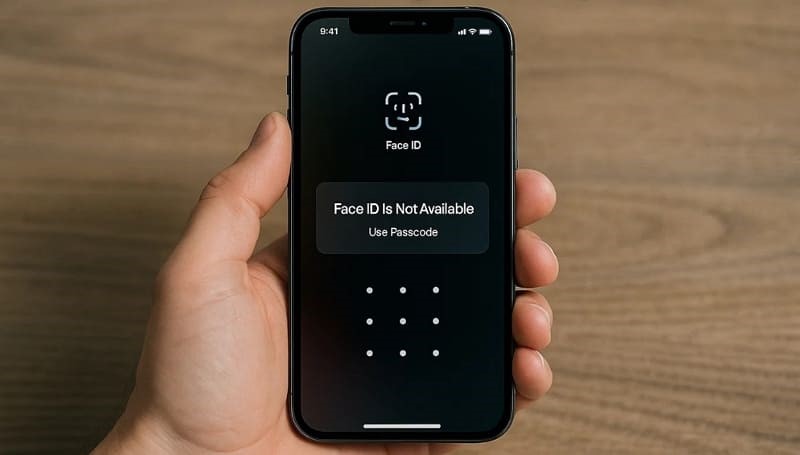
There are several ways to unlock an iPhone without a passcode or reset, but Dr.Fone – Screen Unlock (iOS) is the best option. This tool offers a swift solution for iPhone unlocking without data loss or reset. Dr.Fone can bypass iPhone locks like passcodes, Face ID, and Touch ID while keeping your data safe. It offers the highest compatibility and supports all iOS versions from iOS 7.0 to iOS 26.
This tool can also bypass iTunes backup encryption without data loss and jailbreaking. It also verifies downloaded firmware before use, ensuring it’s safe, genuine, and compatible with the device model. Moreover, this tool serves as an effective iCloud remover and lets you bypass Activation Lock without an Apple ID password.
- MDM Unlock: Delete or bypass Mobile Device Management restrictions to keep personal data safe and intact.
- Screen Time: Disable Screen Time restrictions and parental controls without losing personal data or deleting existing files.
- SIM Unlock: Remove carrier restrictions to use any SIM card worldwide, ensuring freedom across networks and regions.
Review the detailed steps below to understand how you can utilize this iPhone unlock software to unlock your smartphone:
Step 1. Access Remove Screen Lock on Dr.Fone
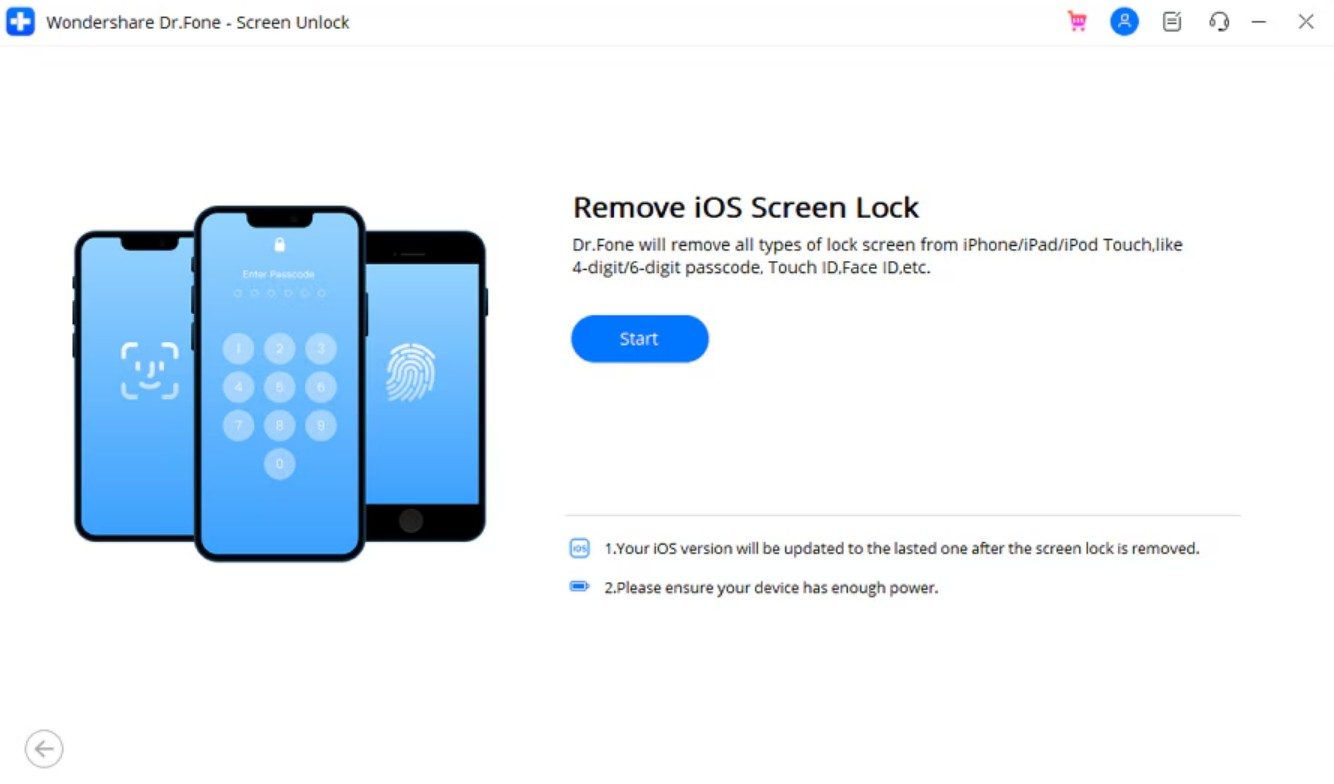
After running the program and accessing the “Toolbox” tab, opt for the “Screen Unlock” feature. Subsequently, opt for the “Unlock iOS Screen” option and press the “Start” button.
Step 2. Confirm Your iPhone Model and Version
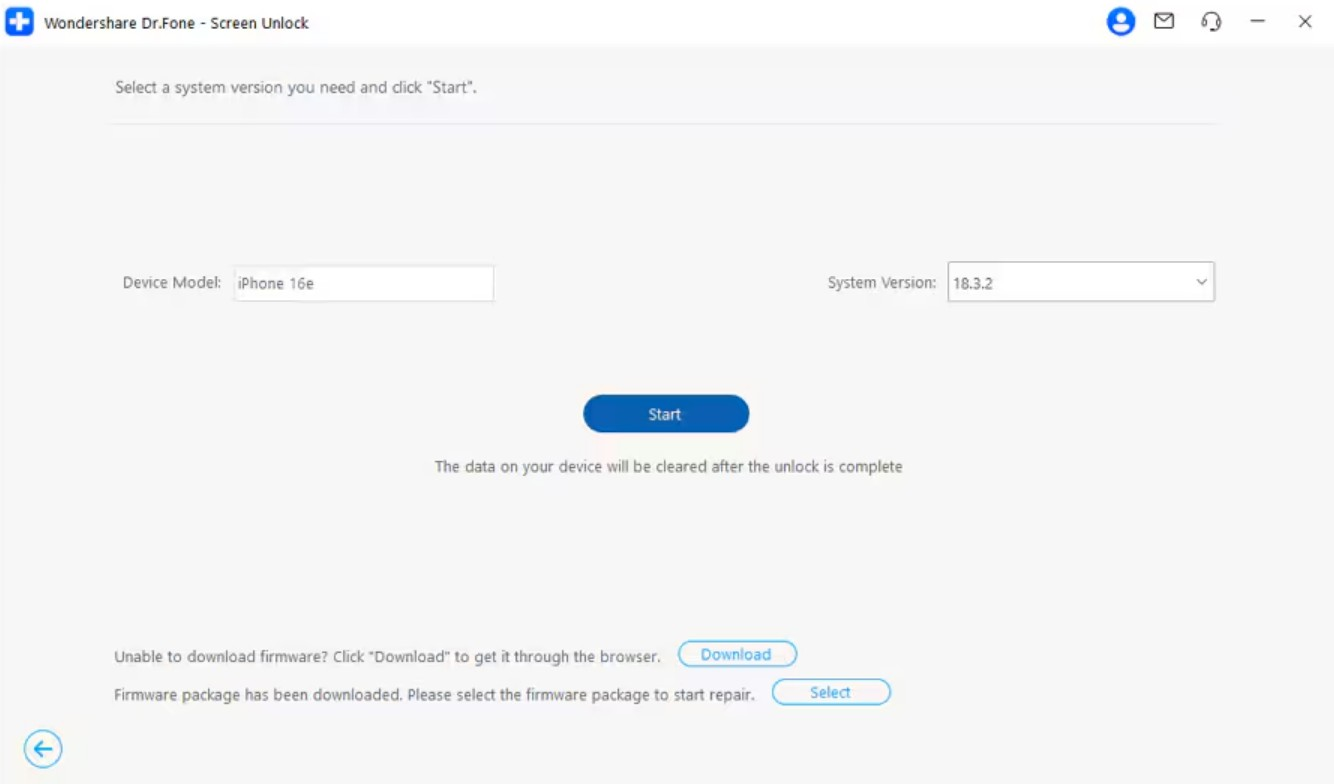
Afterward, link your iOS device to the PC/Mac and enter the “Recovery Mode” by following the guide. Upon seeing and confirming your phone model and version, you need to press the “Start” button.
Step 3. Unlock Your iPhone Screen Lock Without a Passcode
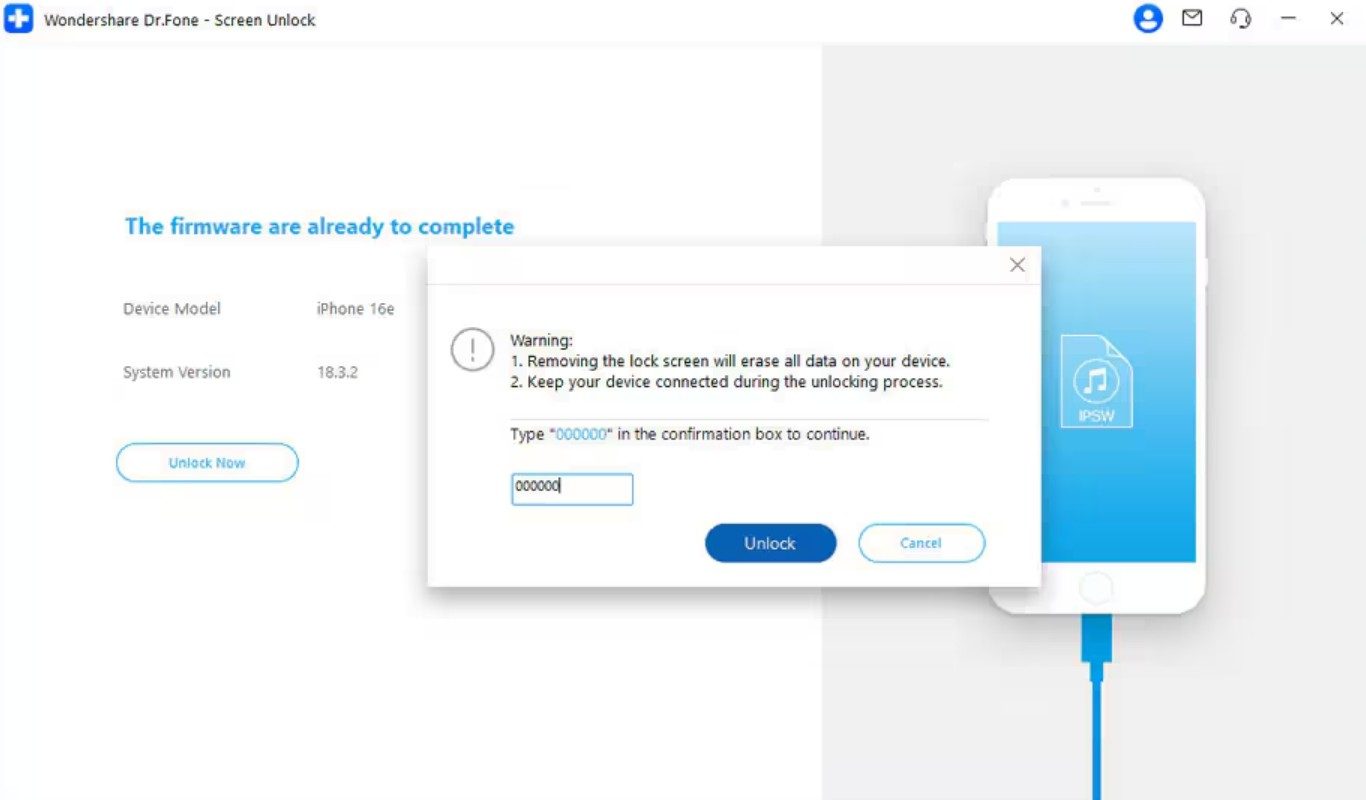
It will then initiate downloading the compatible firmware on your device. Here, enter “000000” after hitting the “Unlock Now” button and press the “Unlock” button to finish the task.
The other best option to unlock an iPhone without a passcode is through iTunes or Finder. The technique puts the device into its default state, which eliminates the lock screen passcode. Provided you have backups, you can restore them later, too, to recover your information and settings. The steps that should be followed to perform this process flawlessly are as follows:
Step 1. As you link your phone to the PC or Mac, run the iTunes/Finder program on it. Here, put your iPhone into Recovery mode by adhering to these guides according to your device model:
- For iPhone 8 or Later: Rapidly press and release the button on the “Volume Up,” then repeat this procedure with the “Volume Down” button. Lastly, press and hold the side button until you get the recovery mode screen on your PC.
- For iPhone 7 and Plus: Tap the “Volume Down” button and “sleep” key together until the screen goes black to enter recovery mode.
- For iPhone 6 or Earlier: Keep pressing the “Home” and “Sleep/Wake” buttons simultaneously until the Recovery Mode screen appears.
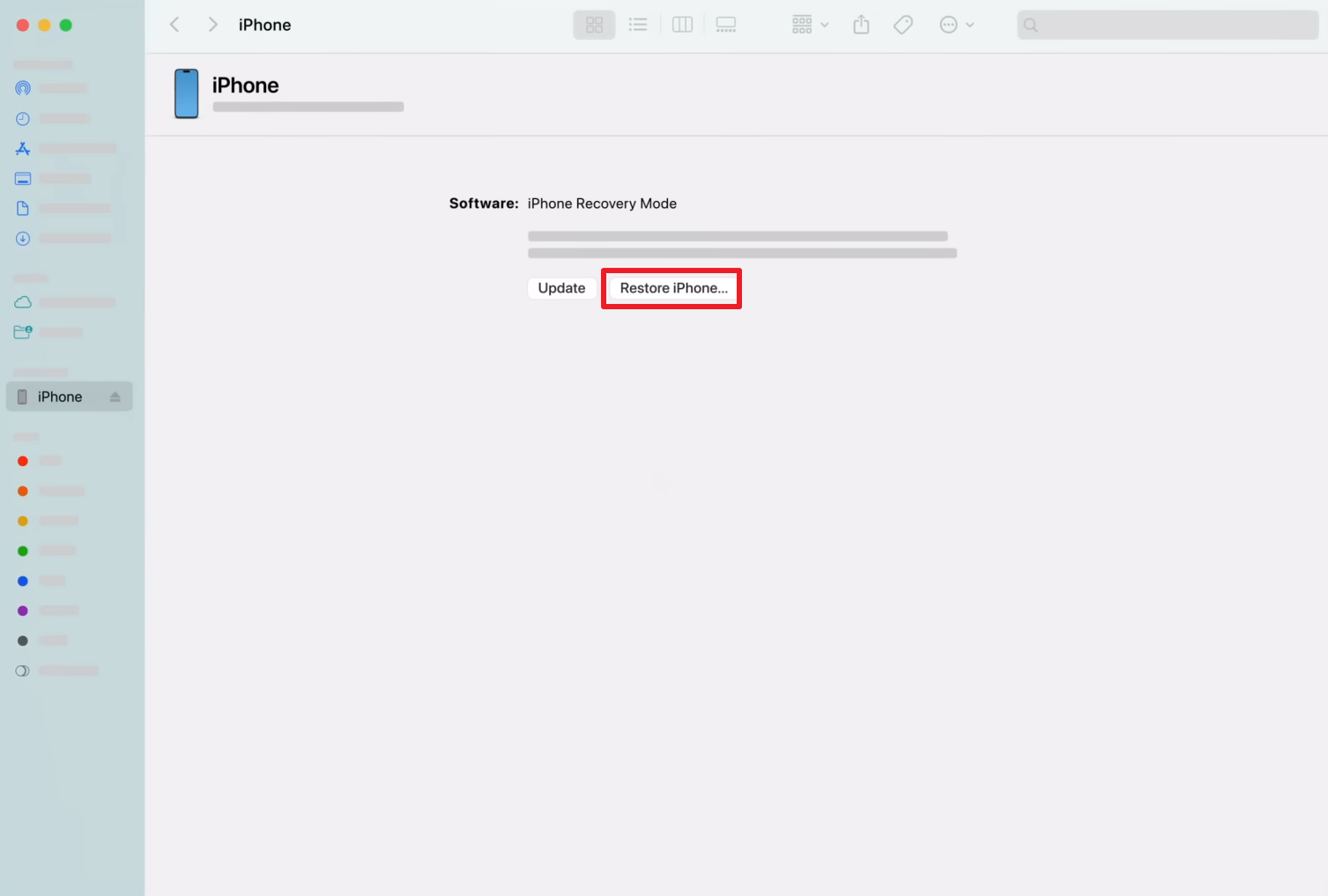
Step 2. Afterward, hit the “Restore iPhone…” button on your Finder/iTunes program.
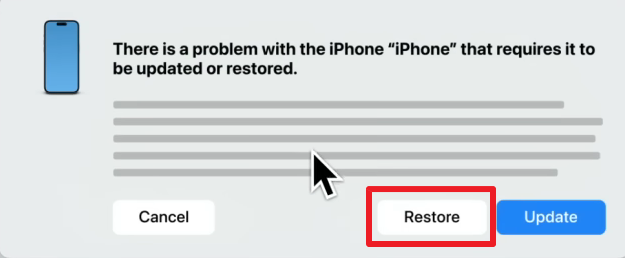
Step 2. Upon seeing a dialogue box, you need to press the “Restore” button.
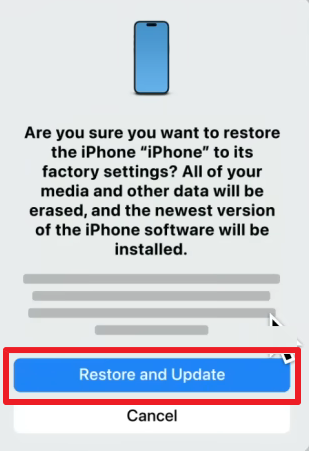
Step 3. Moving ahead, click the “Restore and Update” button and follow the displayed instructions to complete the process.
This method remotely unlocks your iPhone without a password or complex steps. It lets users erase the device and also supports seamless iCloud activation lock removal. Thus, take guidance to learn how you can utilize this solution to unlock your phone:
Step 1. As you sign in on “iCloud Find Devices,” choose your iPhone and click the “Erase” option.
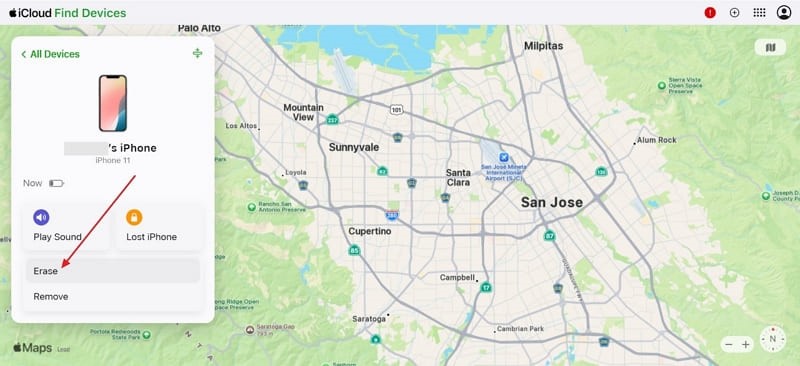
Step 2. Following this, press the “Next” button to erase your phone from iCloud and unlock its screen.
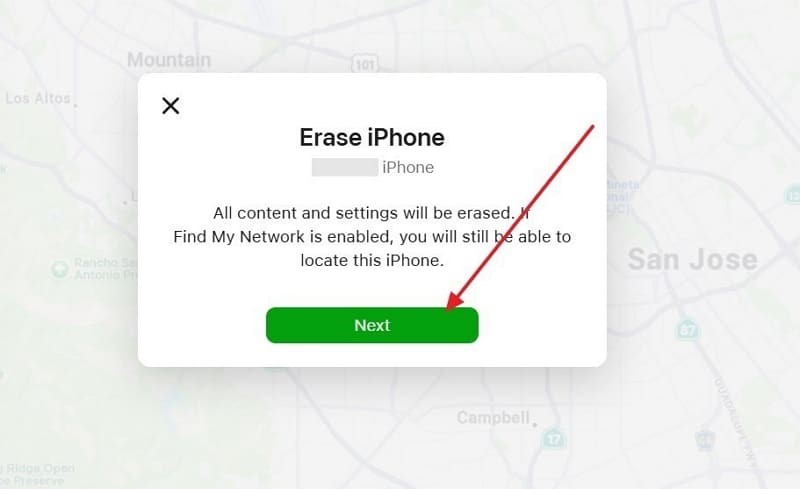
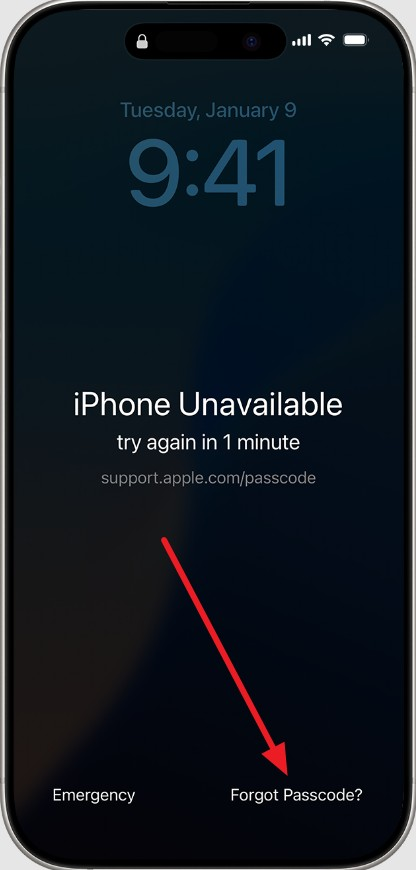
The Erase iPhone option provides a built-in way to regain access when you forget your passcode. It works directly from your device, requiring only Apple ID verification. Follow the quick guide to understand how to use this unlock iOS screen approach:
Step 1. Initially, you need to input the wrong passcode continuously until you see the “iPhone Unavailable” screen. Subsequently, just tap the “Forgot Passcode” option and move further.
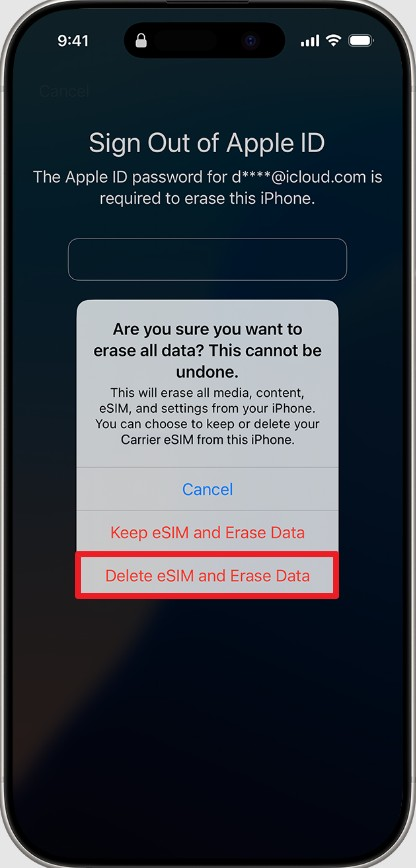
Step 2. Upon entering your correct Apple ID and password, tap the “Delete eSIM and Erase Data” option to unlock your phone.
In summary, it’s stressful and inconvenient to be locked out of your smartphone without a passcode. This guide has provided a few quick methods to restore access without a password or Siri. Still, when you need a simple and ensured fix, depending on a professional iPhone unlocker like Dr.Fone – Screen Unlock (iOS) is the smartest choice.



Comments
No comments yet. Be the first to share your thoughts.