
Have you ever filmed that Sunday brunch and thought, “Wow, this is going to make a beautiful video”.
You had great coffee, plated food, the right amount of lighting, and then you watch the footage back, and it just looks dull. Not quite the Moment you pictured, huh?
Here’s the problem: you’re not alone. Filming lifestyle videos is hard. Bright sun one second, dark restaurant the next. Add camera movement, shiny reflective surfaces, and close-ups to that, and you end up with grainy, blurry, washed-out video. Been there?
And here’s another problem. Transferring or compressing videos can make them look even worse.
Feel like grabbing the phone to re-shoot everything? Not quite! Instead of adding another filter or heading out again for a retake, try a quick HD conversion. It may just smooth out the tiniest details and make your footage look clearer.
Why Lifestyle Content Comes Out Washed Out
- The lighting plays tricks. Why does it look so bad? Have you ever tried to take a photo on your phone in bright sunlight? Or through a window in a busy cafe?
- Your phone has its limits. And it’s doing its best in the best conditions. Mid-range camera phones are best in the best conditions and when the light is just right.
- The problem is, when you share it gets worse. You capture a clip, send it via WhatsApp, share it with your editor, and finally upload it on Instagram. Every lossy copy might degrade the quality further, especially if data-saving options are enabled.
Before You Add Another Filter, Identify What Went Wrong
- Colors look flat: Does your café video have that warm, cozy feel? Try different lighting and color adjustment first. Adding more brightness may not be the solution.
- Textures have disappeared: Details in hair, fabric, food, and makeup may appear out-of-focus due to low resolution or too much compression.
- Dark scenes look grainy: Films of nights out and poorly lit restaurants usually have digital noise making the footage appear coarse.
- The original looked better: If your video was very clear on your phone and you uploaded it but still looks blurry, the likely causes are compression or multiple exports.
- Some scenes look sharp, others don’t: It is possible that the changing illumination level, the object’s movement, or the focus setting of the camera are causing variations in quality from one moment to the next within the same footage.
But can HD conversion fix everything? Not quite. Upscaling can increase resolution and improve how sharp a video looks. However, it can’t always restore details lost to heavy blur, poor focus, or severe compression.
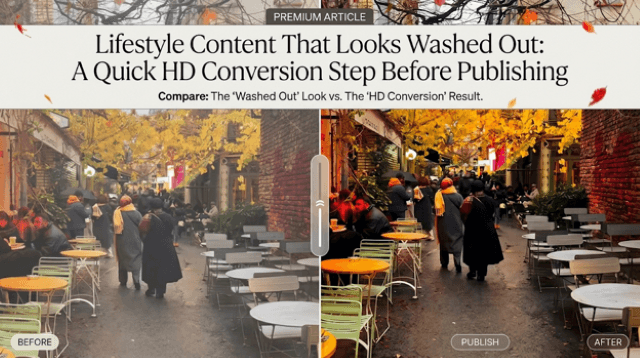
Test image: A bright café scene with washed-out colors, soft details, and a dull overall look. Let’s see how we’ll improve this same clip!
The One-Step Upgrade: Give the Footage an HD Conversion Pass
What if your brunch video needs a little more “pop” but you can’t go back and refilm it? What do you do? Rather than simply adding a new filter to the clip, could you make it HD? By using Wink HD video converter, you can make that lighter lifestyle shot a little higher quality before you upload it.
And no, it’s not just about increasing the resolution.
Ever feel like your low-res clips need a little help? Introducing the Wink AI HD Video Converter, which will not only convert your videos to HD, but will also add crisp detail, remove digital noise, and optimize color balance. More natural sounding footage.
Here’s what you get with Wink:
- 3 resolution options: Choose 1080p, 2K, or 4K based on your publishing needs.
- AI scene-specific enhancement: Automatically adjusts lighting, motion, and visual depth for each scene.
- Noise reduction: Reduces grain in dark cafés, evening outings, and indoor videos.
- Detail enhancement: Sharpens food textures, clothing, hair, and other small details.
- Natural motion: Aims to preserve smooth movement and the original look of your footage.
- Batch HD conversion: Upload multiple videos or an entire folder and process clips in the background.
- 3 export choices: Download enhanced HD videos, extract high-quality still frames, or create Live Photos.
And the best part? It’s a simple 3-step process. Upload your video, select the resolution, and download the enhanced version.
A Quick Before-and-After Test
Before HD conversion: The colors look slightly blurry, the tables lack sharpness. Since it’s an outdoor café, the surrounding colors also look a bit dull.
After HD conversion: Wink aimed to sharpen these details, reduce visible noise, and improve overall clarity while keeping the café’s natural atmosphere.
A high-quality lifestyle video isn’t solely based on what you’re recording. It can be the tiny elements that make the audience feel they are in your shoes.
HD Is Not a Magic Fix: What to Check Before Publishing
HD conversion will enhance your lifestyle videos, but not everything. Use the source or the best quality version you have. Don’t use videos that you download from social media multiple times, as they will already have lost some information. Pick an appropriate resolution: 1080p for most social media stories, 2K or 4K for the best quality or if you will use the video in the future.
Don’t rush to submit it online just because the first few seconds appear clear. Go through the whole video to find out if there’s any fuzzy areas, odd hues or jerky motion. Also, test your video on your phone at the actual size you’ll be viewing it – most viewers will watch your video there.
Make It Part of Your Pre-Publish Routine
You don’t need to spend hours editing every lifestyle video. A quick quality check and HD conversion can make a difference. Here’s a simple routine to follow before your next post.
| Step | What to do |
| 1. Review the raw clip | Check for blurry details, grain, low resolution, or uneven lighting. |
| 2. Run it through Wink | Upload your video to Wink HD Converter and choose 1080p, 2K, or 4K. |
| 3. Inspect the result | Compare before-and-after frames. Look for natural colors, sharp details, and smooth motion. |
| 4. Export and publish | Download the enhanced video and upload it using your platform’s recommended settings. |
In a hurry or short on time? Wink lets you use your browser on your mobile device as well, so you can get your clips ready without having to get out your computer. Whether you’re shooting a brunch Reel, an outfit video, or a weekend trip, this speedy process can help you spot quality problems before you upload.
Conclusion
Your perfect brunch, weekend escape, or wake-up routine deserves so much better than a fuzzy, blurry recording. And no, you don’t have to refilm everything or use more filters.
A fast HD conversion makes your clips clearer, smooths out the grain, and boosts the details that make lifestyle videos enjoyable to watch. You can upscale clips to 1080p, 2K, or 4K in clicks with Wink HD Video Converter.
So, before you post your next Reel or vlog, give the video a last quality check. Play around with the footage using Wink and see if that happens to be all you need.

Comments
No comments yet. Be the first to share your thoughts.